Woocommerce is an open-source WordPress e-commerce plugin that makes it possible for you to have an online store.
Google Analytics is a software that gives you insights on your website users, how they found your website, and how they are using your site.
In this article, we are going to discuss how to add Google Analytics in Woocommerce, how to enable Enhanced e-commerce, the benefits realized when using Enhanced e-commerce and the benefits we realize after tracking.
The Enhanced Ecommerce, which is a feature in Google Analytics, gives in-depth insights into the overall performance of the store.
Before setting up Google Analytics, we need a Google Analytics Account. A Woocommerce enabled site and a Woocommerce Google Analytics Integration Plugin.
We can, therefore, say that Enhanced E-commerce helps to track conversion rates throughout the buyer’s journey with deep data-driven insights.
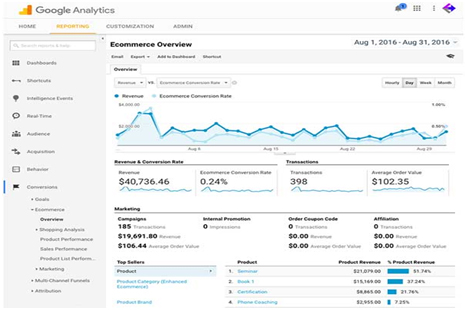
Table of Contents
Integrate WooCommerce in Google Analytics
Step 1: Install the WooCommerce Google Analytics Integration Plugin
The first step is to install a Woocommerce Google Analytics Integration plugin.
To install the plugin, go to your WordPress dashboard and click on the Plugins >>> Add New and click on Woocommerce Google Analytics Integration and then install.
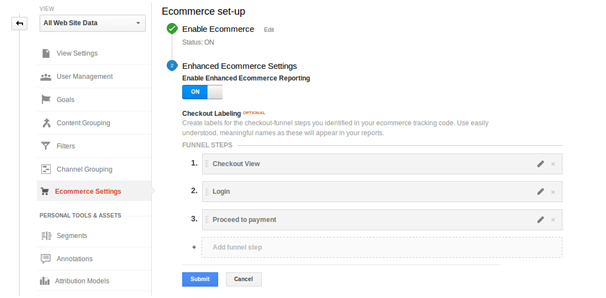
After installing the plugin, we’ll then proceed to the Google Analytics Admin area. Click on the View >>>Ecommerce Settings. On the Enable Ecommerce section, make sure to turn on the notification on the section and make sure to do the same for the Enhanced Ecommerce Settings. The last step is to click Submit.
Once all the settings are configured correctly, proceed to integration.
Step 2: Integrating Woocommerce To Google Analytics
The next step we’ll integrate Woocommerce to Google Analytics.
To start, go to WordPress dashboard and click on Woocommerce >>> Integration. Once you have clicked the integration section, you’ll see Google Analytics tag asking you to provide the Google Analytics ID. To get the ID, go to the Google Analytics dashboard and click on the Settings >>> Property settings. Under the property settings, you will find the tracking id. Copy the tracking ID and return to your WordPress dashboard and paste the ID.
When you have finished, go ahead and configure the remaining settings. The standard tracking is dependent on whether you have already started tracking activities on your website. If you’ve already started tracking the activities, then don’t enable, but if you have not started tracking activities, you can go ahead and enable the standard tracking.
In the remaining settings, we are going to enable all of them. Make sure the Enable Enhanced Ecommerce setting is enabled and when you have finished that save the changes. Once you click on save changes, tracking automatically starts.
Also, make sure your payment gateway is suitable/compatible with your customers. To ensure this, go to the Google Analytics dashboard, click on the Settings >>> View >>> View Settings and then click on Currency displayed and set the Currency depending on the type of Currency used by your customers.
How To: Add Google Analytics in WooCommerce using MonsterInsights
Step 1: Install Monsterinsights and the E-Commerce Addon
The first step is to install MonsterInsights and e-commerce addon. MonsterInsights provides insights and is the best tracking tool thanks to the detailed information it gives.
To install MonsterInsights, go to the MonsterInsights website and download the pro version that requires you to pay it. Once you have finished downloading, go to the WordPress dashboard click Plugins>>> Add New>>> Upload plugin button. On the choose file, select the zip file you downloaded. Click install to upload the file. Once the plugin has downloaded, click the activate button to activate MonsterInsights.

To add the E-commerce addon, go to MonsterInsights dashboard click Insights>>>Addons>>>E–commerce.
Step 2: Enable Enhanced E-commerce Tracking in Google Analytics
The second step is to enable Enhanced E-commerce tracking in Google Analytics. To enable Enhanced E-commerce, go to the Google Analytics homepage and key in the settings for the site you want to start tracking.
Next, click on the Admin section >>> E–commerce settings>>> E-commerce set-up and change the status to on from off. Next, click on the Enhanced E-commerce settings and enable it to on and then click on Submit.
Step 3: Enable Enhanced E-Commerce in MonsterInsights
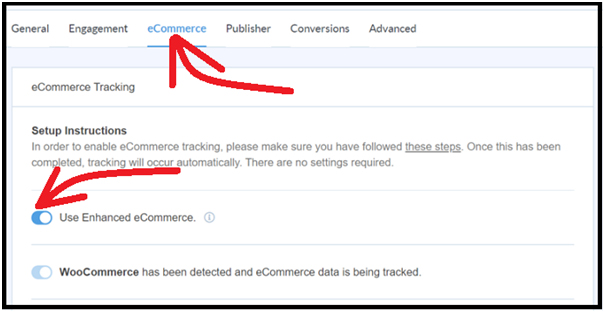
The last step is to enable Enhanced E-commerce in MonsterInsights. To do this, go to the WordPress dashboard and click Insights>>> Settings>>>E–commerce and enable Use Enhanced E-commerce.
Once Enhanced E-commerce is enabled, tracking of the Woocommerce store automatically starts.
Tracking Your WooCommerce Store Performance
Once we have finished configuring all the settings, we can then proceed to track the Woocommerce store’s performance.
Google Analytics makes it easy for tracking. The Enhanced Ecommerce, which is a feature in Google Analytics, gives in-depth insights into the overall performance of the store in that it helps to track conversion rates throughout the buyer’s journey with deep data-driven insights.
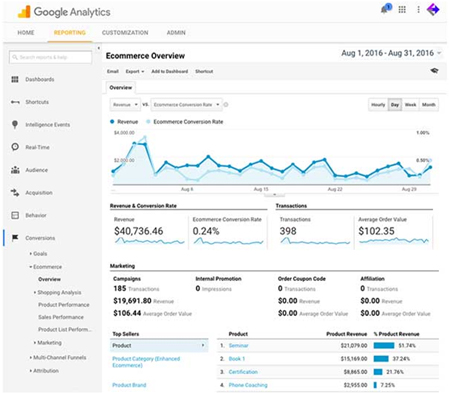
To track the performance of the Woocommerce store, go to the Google Analytics dashboard. On the dashboard, click on Conversion>>> Ecommerce and then navigate to Overview.
- The Overview tab provides information on revenue, conversion rates, transactions, and the average order value.
- Conversion rates. The conversion rate is the number of conversions divided by the total visitors.
- Average order value. Average order value is the amount of money spent every time a customer spent while placing an order on the website.
MonsterInsights provides a piece of more detailed and insightful information that is broken into bits to display the E-commerce reports.
To view the e-commerce reports, go to the WordPress dashboard and click Insights>>>Reports>>>E-commerce.
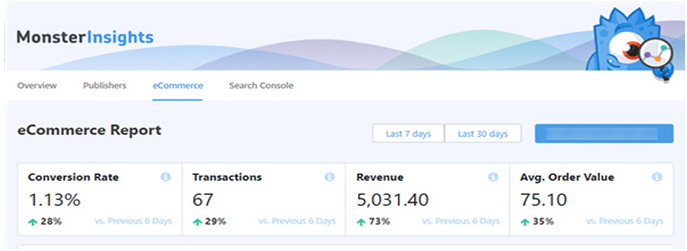
To get a more detailed report, scroll down, and see how your products are performing.

From the reports, you can see the products that perform well in terms of the products that are purchased most. From the information, you also get to know what products are not performing well, and you can, therefore, work on improving their sales.
Using Google Analytics, you can also learn the sites that give you more conversions.
Simply, we can say the Overview provides general information on all activities in the Woocommerce store.
Tracking provides information on popular products among your customers and provides information on the number of customers you have.
To do an in-depth tracking, we can click on the following features;
- Ecommerce overview. The Enhanced Ecommerce feature will give us access to all data and provide us with information such as revenue, conversion rates, and orders.
- Shopping behavior. With shopping behavior, we are going to get an analysis of the customers and their transactions.
- Checkout behavior. The checkout behavior is going to provide us with information on the payments and billing process.
- Product performance. Thanks to product performance, we will be able to get information on the overall performance of the product.
- Product list performance. The report will show us the sales performance of specific products and overall sales growth.
Advantages of Tracking Woocommerce Store Analytics
Tracking has many advantages that are so helpful for the business. After tracking your Woocommerce store, you can;
- Make the right business decisions. Once we make the right business decisions, we can ensure better implementation of our business policies and also achieve the goals we have set.
- Know the overall performance of our Woocommerce store. After we have done tracking, we will know how the Woocommerce store performs and all the changes needed to make it perform. Tracking will help us know the products are performing best.
- Find out the engagement pattern. Tracking will help us know our customer engagement, the growth rates, and the Conversion of leads. With the information, we can know how we are performing in terms of how the customers perceive our brand and the products we are selling.
- Know how much revenue is obtained from sales. Tracking will help us know how much we earn from our sales and therefore know if we are making a profit or not.
Try Google Analytics + Woocommerce Integration with MonsterInsights
Summary
This article is a step by step guide on how to add Google Analytics in Woocommerce. The article also tells us about the benefits we realize with tracking. Therefore, I will encourage everyone running a Woocommerce store to adopt a Google Analytics account to be able to conduct metrics on the performance of the store.
Google Analytics and MonsterInsights have made it very simple for a business to conduct metrics and know how they are performing against their competitors. From the information business owners get from Google Analytics, they can make better decisions for the business. Google Analytics has also helped them place themselves in the market.