



Before I explain how to create a poll in WordPress, let me explain what exactly is a poll.
A poll form is a mini-survey that has questions for website visitors. The questions are either single questions or multiple questions. The poll form has one or two questions that we use to get information from visitors.
Formidable Forms is a WordPress Poll plugin that has a drag-and-drop builder that helps to create advanced forms.
In this article, we are going to discuss the step by step guide to create a poll in Formidable Forms. We are also going to discuss how we can use the poll forms. And the advantages and disadvantages of using poll forms.
To create a poll form, you need to decide on the questions to ask. You should also not ask many questions and also ask closed questions. Asking closed questions helps you to be specific.
Table of Contents
Why use Poll Forms?
- Engage with your website visitors: We use a poll form to engage with visitors who fill the forms, therefore, making conversations. By doing this, you can keep in touch with your customers and website clients.
- Get feedback from your customers: We use poll forms to get feedback from your customers on certain products.
- Retrieve information from your visitors: We use poll forms to get information from your customers on their needs and preferences. With the information you get from your customers, you can fulfill their needs and wants.
Advantages of using Poll Forms
A poll form has many advantages. The advantages include;
- A poll form has audience coverage. A poll form is online on your website. It can, therefore, reach many people from any part of the world.
- Poll forms are very affordable. A poll form is free. The affordability makes it popular among website users and also business owners.
- You can use a poll form to start a conversation. Poll forms help to start conversations between the website owner and the visitors that visit his/her website. Making conversations helps the owner to engage with the visitor and know what they want and also know on areas to improve.
- It’s easy to respond to a poll form. Poll forms are easy to fill because they are online.
- Poll forms are fast. It only takes a few minutes to fill a poll form. The few minutes make poll forms fast as they are not time-consuming.
How to Create a Poll in WordPress?
Step 1: Install the Formidable Forms Plugin
The first step of the guide is to install the Formidable forms plugin. In this article, we are going to install the Formidable form pro version. To download the plugin, go to the Formidable forms website and purchase the pro version. After paying for the plugin you want, download the plugin zip file.
To install the plugin, go to WordPress dashboard and click on Plugins>>>Add New>>>Upload the file. Click the upload file button and choose the zip file you downloaded. After the plugin has finished uploading, click on the Install now button to upload the plugin. After the plugin has installed, click on the Activate button to activate it.
Step 2: Create an Online Poll
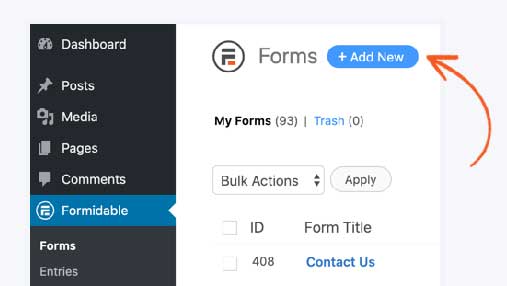
The second step is to create an online form that’s going to be our poll form. To create a poll in WordPress, go to the WordPress dashboard and click Formidable>>>Forms and click on the Add New tab. You can either select the prebuilt form or the blank form. For this tutorial, we are going to use a blank form. Click the blank form and name the poll form.

On this step, you can customize your poll form to look how you want it to look. You can use different fields to customize the poll form, such as Radio buttons. Radio buttons give your visitors only one option when they push a button. On this step, you can also add notable quotes to your poll form.

The checkbox option helps to collect results from the poll.
Step 3: Display the Poll Results
The last step of the guide is to display the results. We can achieve this by following two simple steps, namely;
- To change the poll button.
- To display a graph for the results after everyone has voted.
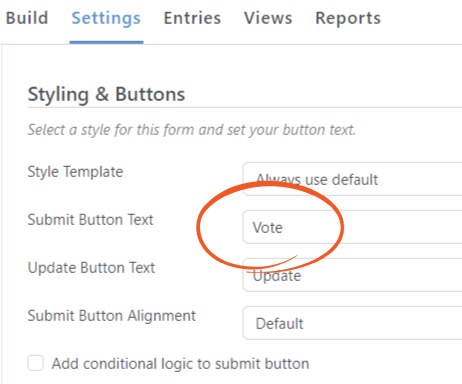
The first step is to change the poll button. To change the poll button, click on the Setting and then click on the Styling &Buttons tab. On the Styling & Buttons tab, change the Submit Button text to Vote.
The second step is to add the votes to a pie chart. To display the pie chart, click on the General settings >>> Messages. On the message tab, insert a shortcode for the graph.
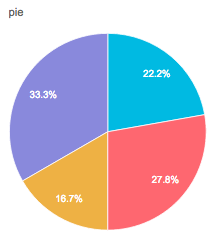

The shortcode then displays your results in a pie chart. The results go live. And anyone can access them.
Summary
This article has discussed the step by step guide we can use to create a poll form in WordPress. It has also stated the uses of poll forms and the advantages of using poll forms. There are some disadvantages to using poll forms. The disadvantages are;
- The poll form results are not always accurate. The answers are not a true reflection of people’s thoughts. And this makes them inaccurate.
- The poll results are only an opinion of a fraction of a whole population. The poll results are opinions from a fraction of people and not all the people. And this does not reflect the opinion of everyone.
Regardless of the disadvantages, poll forms are significant. And they help website owners to improve on aspects that clients request. Website owners also use the poll forms to get opinions from their visitors and customers on how their products are and what to change in them.
Create a poll in WordPress with Formidable Forms
Therefore, there’s a need for everyone owning a website to have poll forms in his/ her website to use them to get information and feedback from the visitors. If you are a website owner and you are not using an online poll form, it’s not too late to get one. Please create one for your website to enjoy the benefits we have discussed.
What can you do with Formidable Forms?